WooCommerce Platform Authorization
Supported Version: WooCommerce 8.0 and above (REST API)
This guide walks you through connecting your WooCommerce store to Alleasy OMS using the REST API.
Step 1: Get Your Site URL
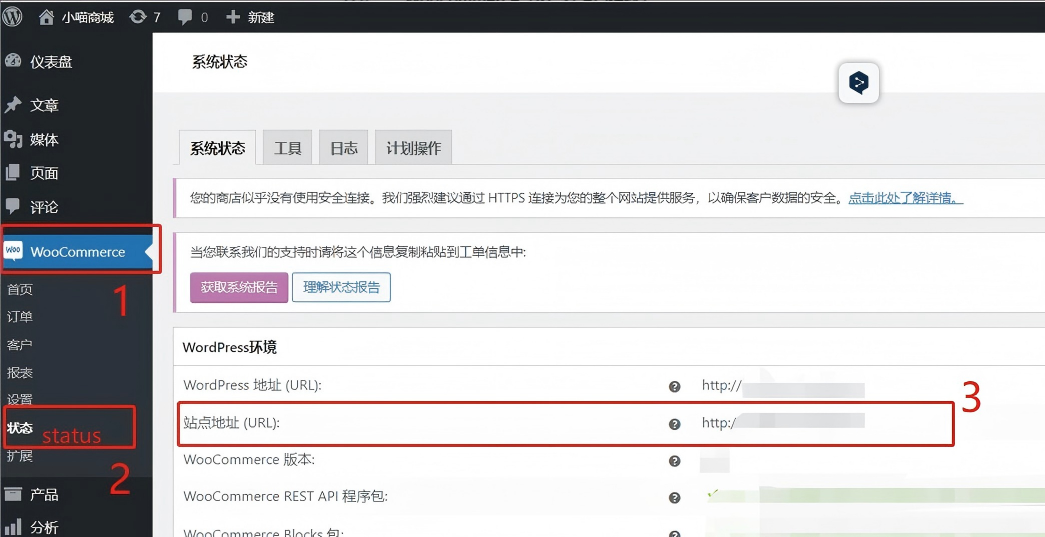
Login to your WooCommerce/WordPress backend and navigate to get your Site URL.
1.1 Click WooCommerce in the left menu
1.2 Click Status (状态) in the submenu
1.3 Find WordPress Environment section, copy the Site Address (URL) (站点地址 (URL))
Note: Save this URL - you'll need it for Step 3 when authorizing in OMS.
Step 2: Generate API Key
Create a Consumer Key and Consumer Secret in WooCommerce settings.
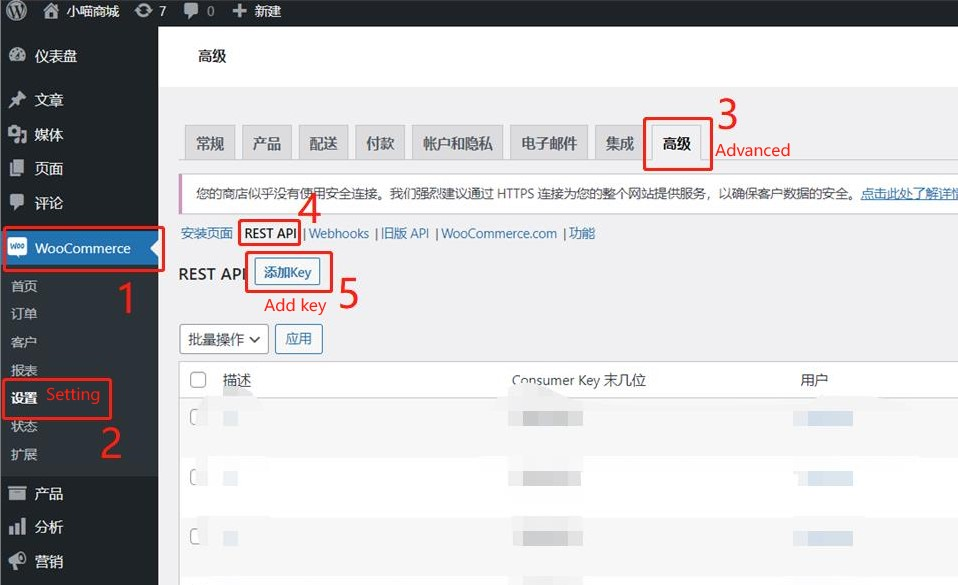
2.1 Go to WooCommerce > Settings (设置)
2.2 Click Advanced (高级) tab
2.3 Click REST API link
2.4 Click Add key (添加Key) button
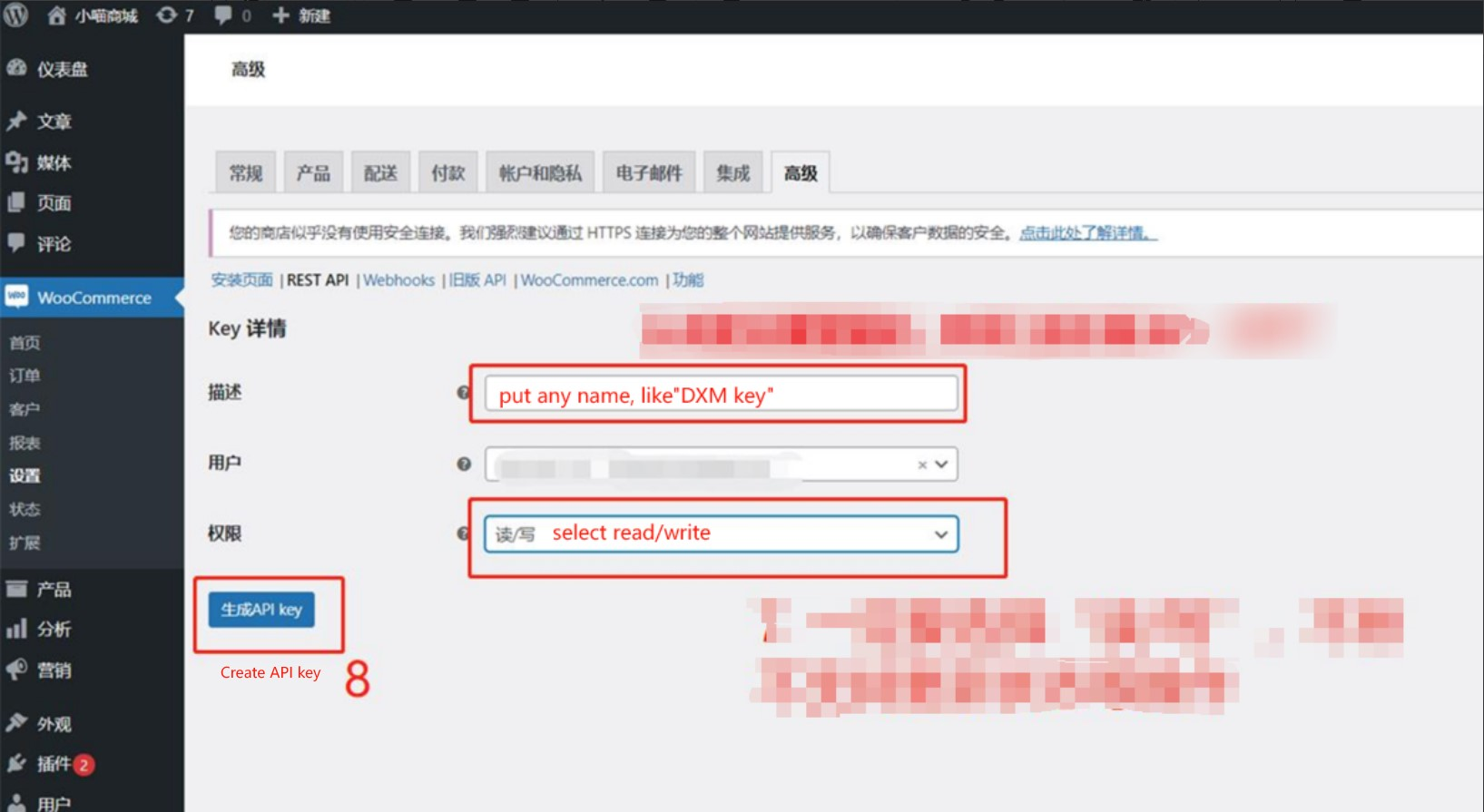
Fill in Key Details
2.5 Description: Enter any name (e.g., "Alleasy OMS Key")
2.6 User: Select the appropriate user
2.7 Permissions: Select Read/Write
2.8 Click Generate API key (生成API key)
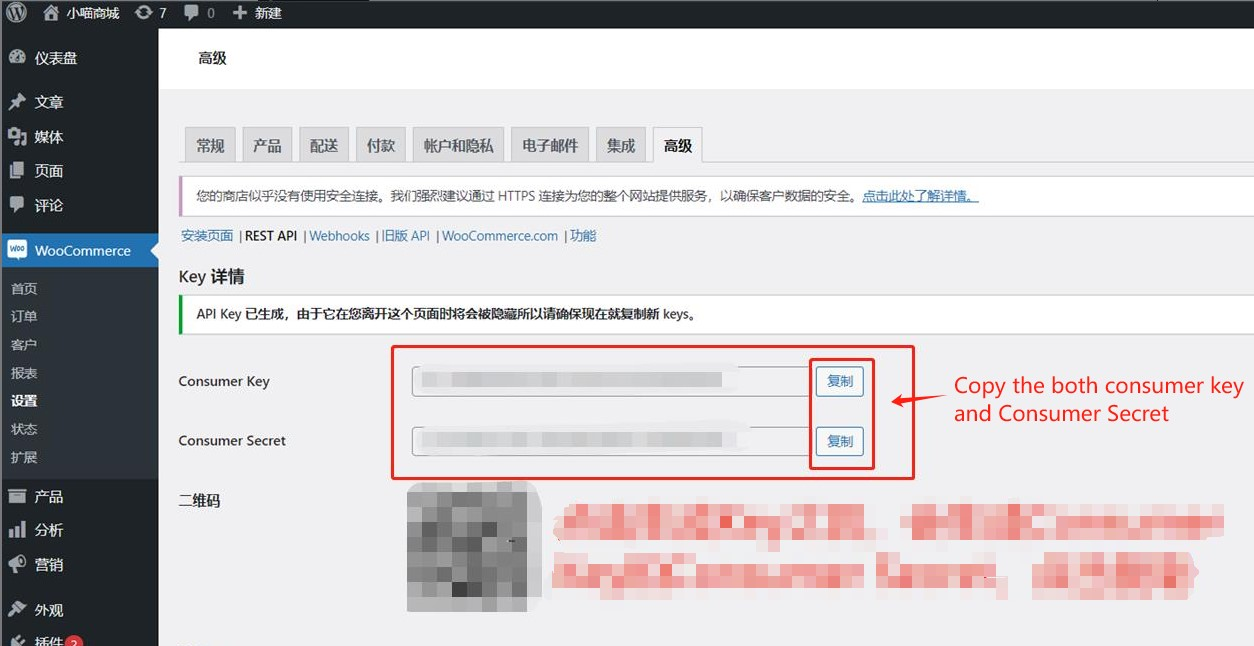
Important: Copy both Consumer Key and Consumer Secret immediately! They will not be shown again after you leave this page.
Step 3: Authorize in OMS
Add the WooCommerce platform authorization in Alleasy OMS.
3.1 Login to OMS: https://oms-alleasy.xlwms.com/
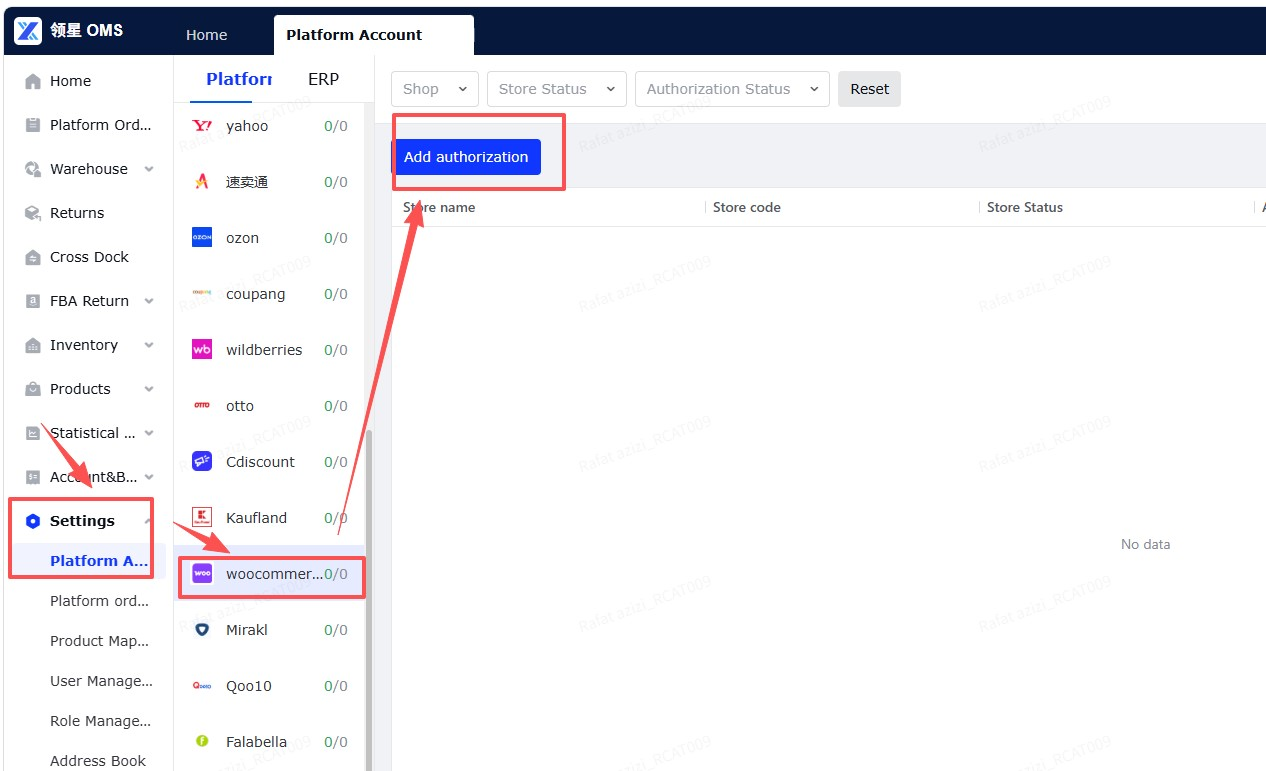
3.2 Go to Settings > Platform Account
3.3 Select WooCommerce from the platform list
3.4 Click Add authorization
Fill in Authorization Information
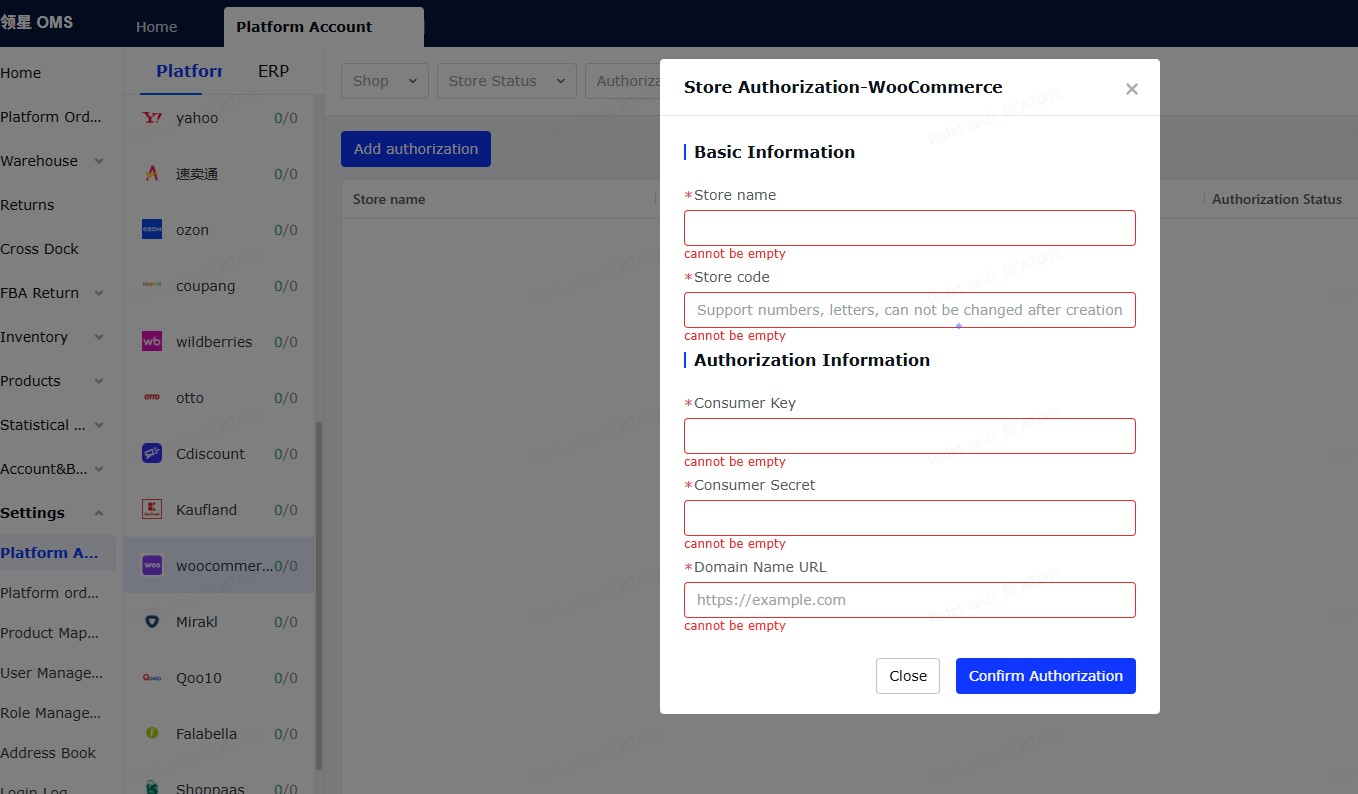
3.5 Basic Information:
- Store name: Enter your store name (or any name for easy identification)
- Store code: Enter a unique code (numbers/letters, cannot be changed after creation)
3.6 Authorization Information:
- Consumer Key: Paste the Consumer Key from Step 2
- Consumer Secret: Paste the Consumer Secret from Step 2
- Domain Name URL: Paste the Site URL from Step 1
3.7 Click Confirm Authorization
Authorization Complete
Once authorized, your WooCommerce store will appear in the Platform Account list with status "Authorized". Orders will start syncing automatically.
← Back to Main Tutorial