How to Authorize SHEIN Store in Alleasy OMS
Complete guide to connect your SHEIN store with OMS
1. Overview
Definition: Connect your SHEIN store with OMS for automatic order sync and unified management.
Benefits: Auto-sync orders, process in OMS, set automatic shipping rules.
2. Authorization Steps
2.1 Fill in Merchant SKU
OMS syncs SHEIN's "Merchant SKU". Fill this in SHEIN backend before authorization.
2.2 Access OMS
Path: OMS > System Settings > Platform Authorization > SHEIN > Add Authorization
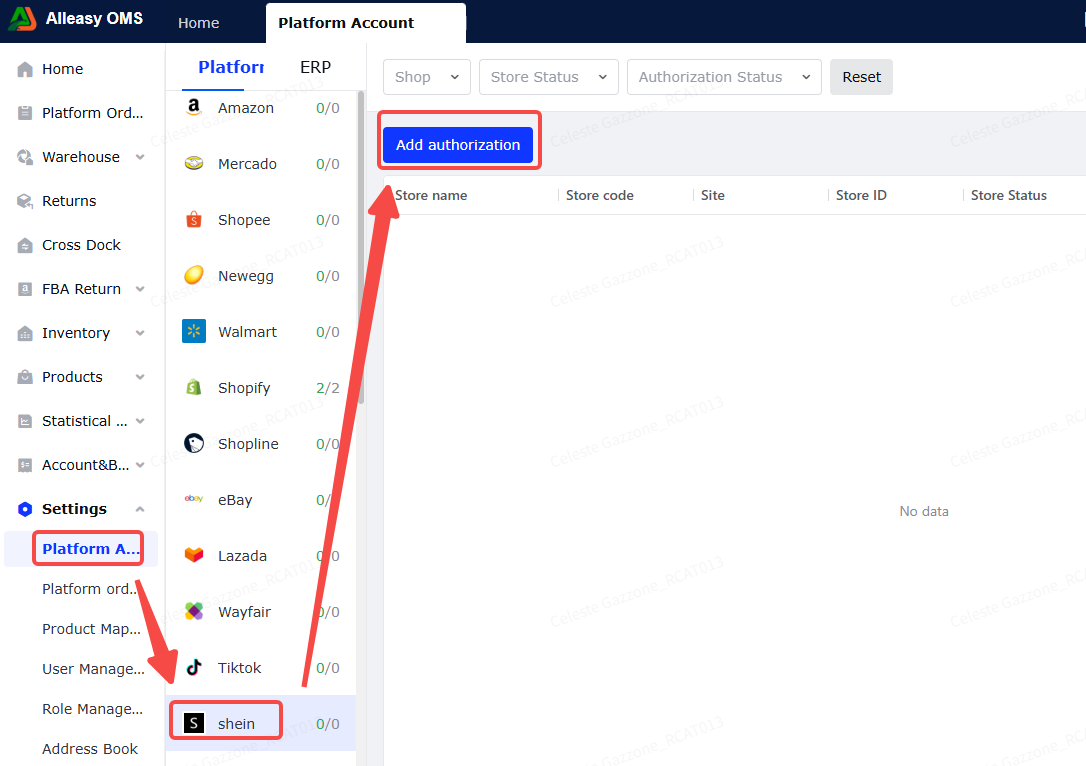
2.3 Fill Authorization Info
- Store name: No Chinese characters (may cause failure)
- Store code: Custom field for OMS display
- Site: Select matching store type
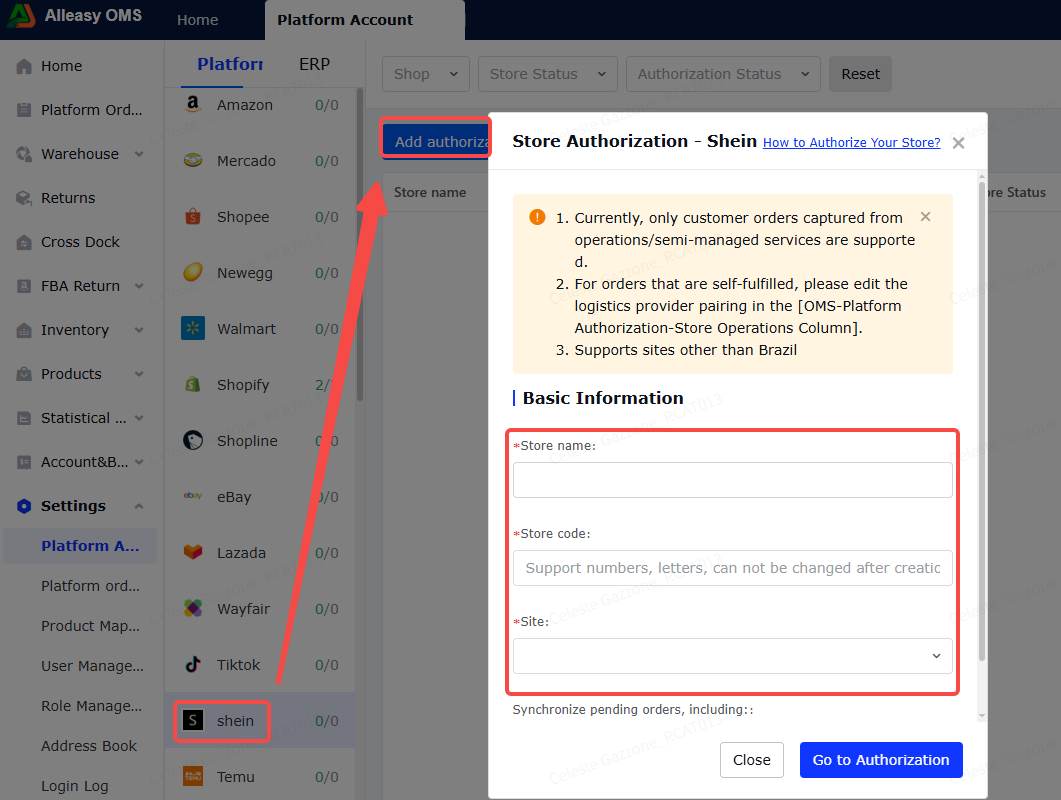
2.4 Click Go to Authorize and Login
Login with SHEIN main account in the authorization page.
2.5 Check Agreement and Confirm
2.6 Set Up Product Mapping (Required)
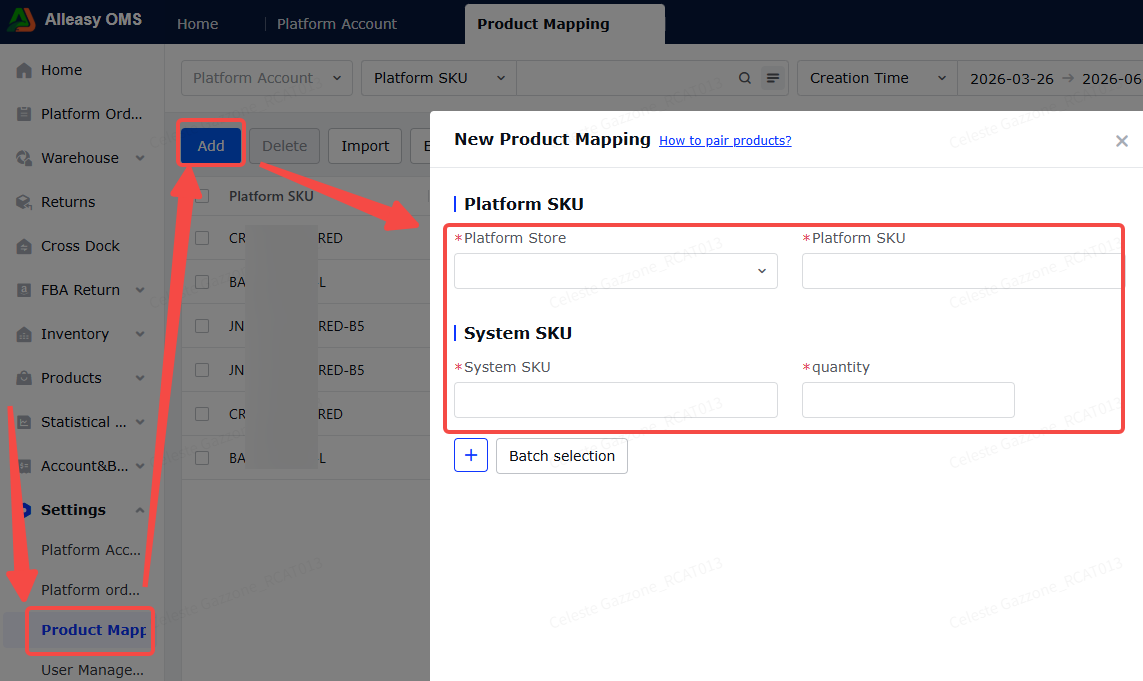
Path: OMS > Settings > Product Mapping > New/Import
- Ensure OMS has created corresponding product SKUs
- Ensure SHEIN product info has Merchant SKU filled in
- Even if Merchant SKU matches OMS SKU, mapping is still required
- Quantity = conversion coefficient (NOT inventory quantity)
2.7 Logistics Provider Mapping (For Semi-managed Stores)
System auto-fetches platform logistics providers. Map them to system logistics providers.
2.8 Platform Order Operations
- First authorization pulls orders from 5 days before store creation
- Subsequent syncs: orders from last 2 days (next day)
- Click [Manual Sync] for immediate sync
3. Common Issues
Q: Authorization shows "Authorization failed"?
A: Check if store name contains Chinese characters. Modify in OMS and retry.
A: Check if store name contains Chinese characters. Modify in OMS and retry.
Q: Orders synced but platform SKU is empty?
A: Ensure Merchant SKU was filled in SHEIN backend BEFORE authorization. If filled after, system cannot re-fetch. Manually create outbound order for empty SKU orders.
A: Ensure Merchant SKU was filled in SHEIN backend BEFORE authorization. If filled after, system cannot re-fetch. Manually create outbound order for empty SKU orders.
Q: Tracking number differs from label?
A: Due to platform limitations, label file and tracking number are not generated simultaneously. System fills tracking number with package number to avoid shipping delays.
A: Due to platform limitations, label file and tracking number are not generated simultaneously. System fills tracking number with package number to avoid shipping delays.