How to Authorize Lazada Store in Alleasy OMS
Complete guide to connect your Lazada store with OMS
1. Overview
Definition: Connect your Lazada store with OMS for automatic order sync and unified management.
Benefits: Auto-sync orders, process in OMS without switching to Lazada backend, set automatic shipping rules.
2. Supported Sites and Store Types
2.1 Cross-border Accounts
Multi-site authorization mode. After authorization, if store is linked to multiple sites (e.g., Singapore, Malaysia), separate store entries will be auto-created in OMS.
2.2 Non-cross-border Accounts
| Code | Site |
|---|---|
| sg | Singapore |
| my | Malaysia |
| th | Thailand |
| vn | Vietnam |
| ph | Philippines |
| id | Indonesia |
3. Authorization Steps
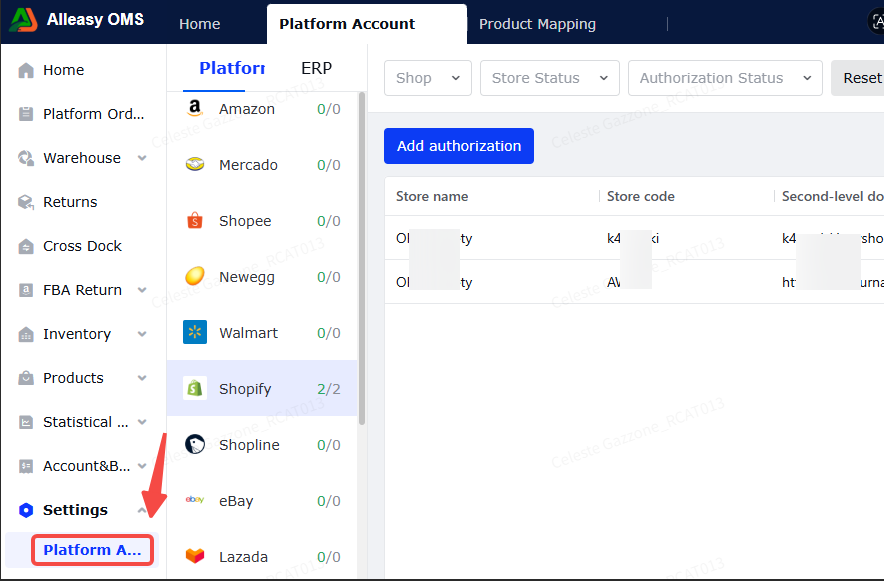
3.1 Access OMS System
Login to OMS, navigate to System Settings.
3.2 Add Lazada Store Authorization
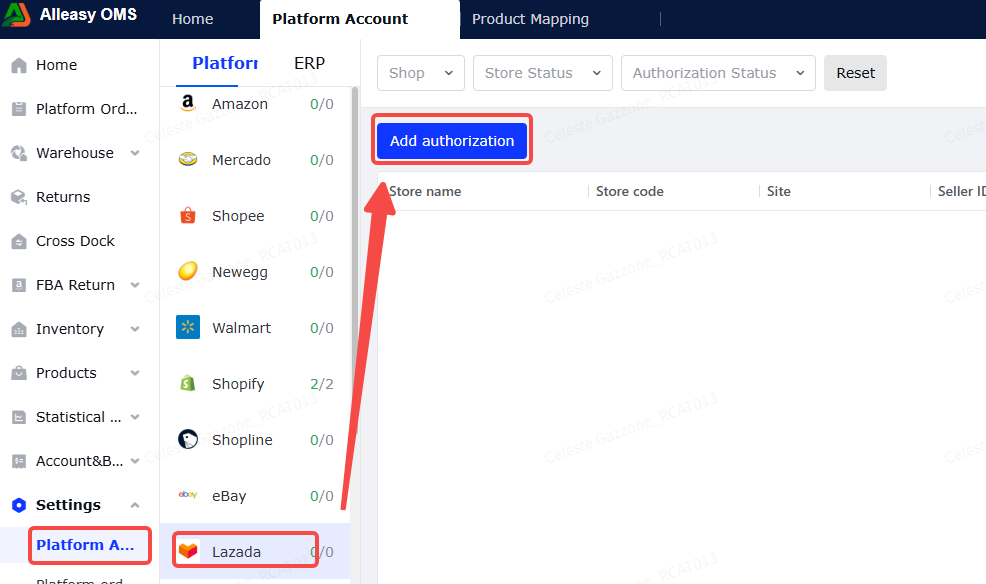
Navigate to Platform Authorization > Lazada > Add Authorization.
3.3 Fill Basic Information
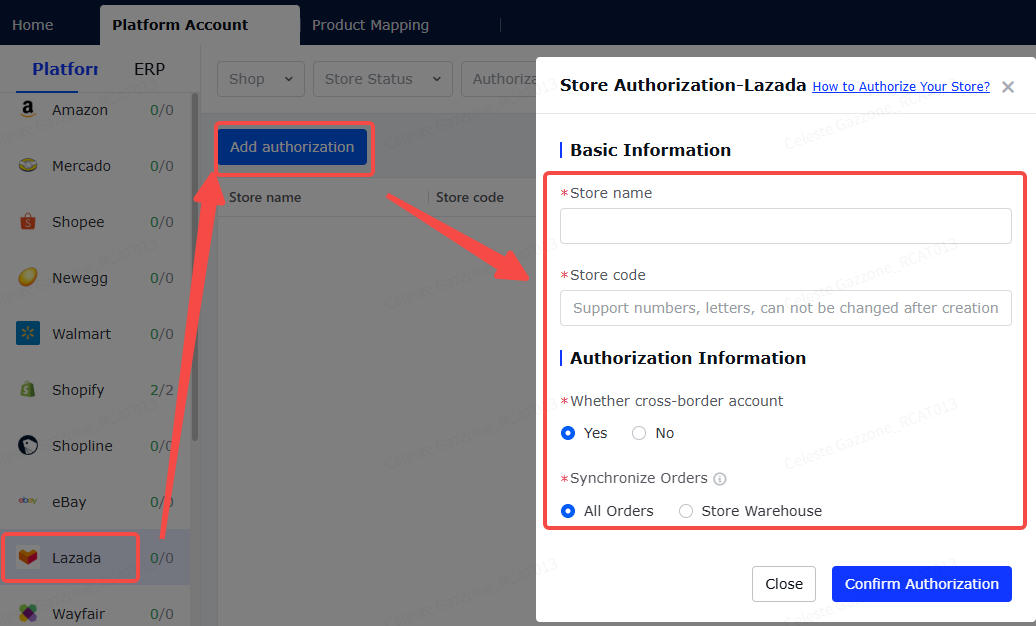
Store name and store code can be customized.
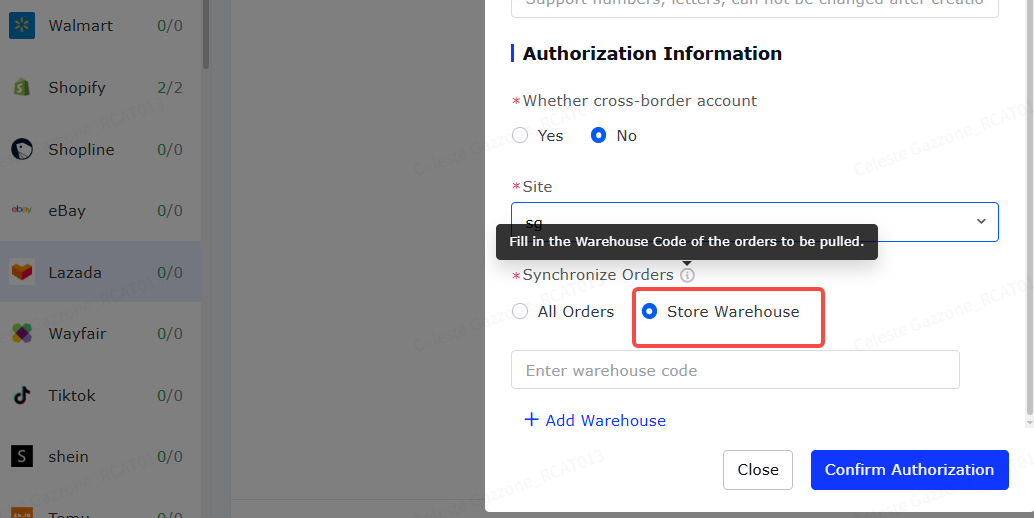
3.4 Fill Authorization Information
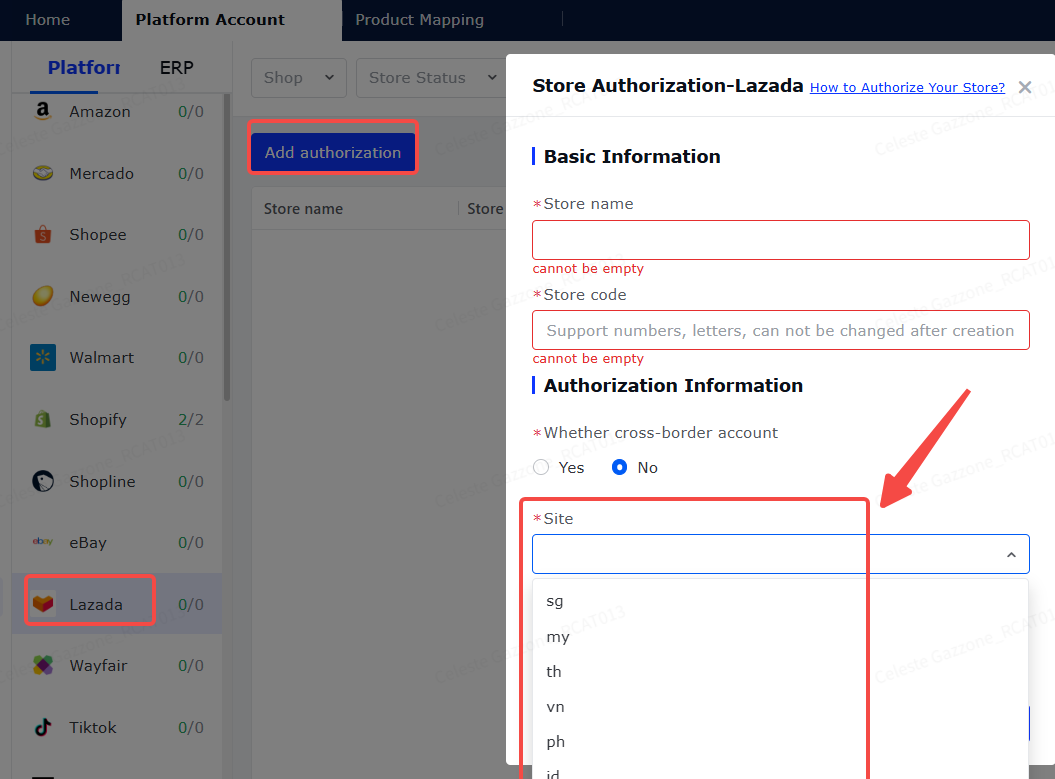
(1) Select cross-border account and site:
- Multi-site store: Select "Yes"
- Single-site store: Select "No", then choose site (sg/my/th/vn/ph/id)
(2) Select order sync mode:
- All Orders: Sync all orders with "pending" and "repacked" status
- Store Warehouse: Only sync orders from designated shipping warehouse
3.5 Login to Lazada Store
Login with your Lazada seller account credentials in the redirected page.
3.6 View Authorization Status
After successful authorization, you'll be redirected back to OMS. View authorization status in the platform list.
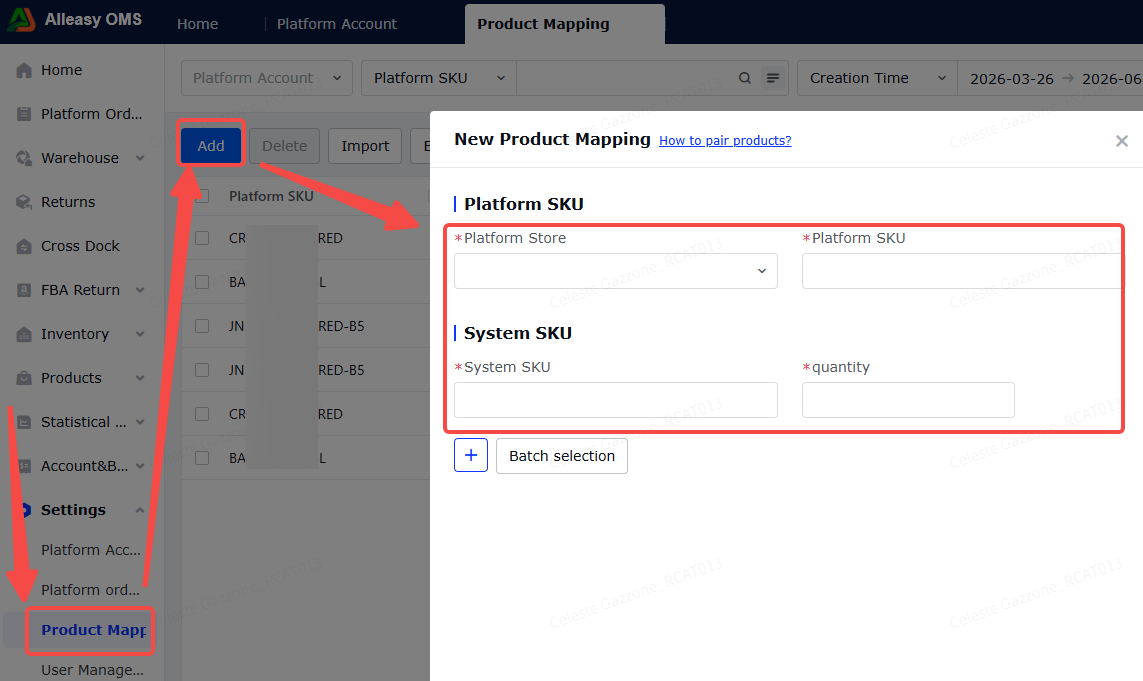
3.7 Set Up Product Mapping (Required)
Path: OMS > System Settings > Product Mapping > New
- Ensure OMS has created corresponding product SKUs
- Ensure Lazada product info has SKU filled in
- Quantity = conversion coefficient (NOT inventory quantity)
- For combination products, click "+" to add multiple system SKUs
3.8 Platform Order Operations
- First authorization pulls orders from 3-5 days before store creation
- Subsequent syncs every 15 minutes (last 2 days)
- Click [Manual Sync] for immediate sync
4. Additional Information
4.1 Important Notes
- Complete product mapping before orders can be processed
- Product mapping is bound to store - multiple stores need separate mapping
5. Common Issues
Q1: Cross-border authorization shows "Sorry, wrong! Error Message: The request has failed due to a temporary failure of the server"
A: This occurs when any of the 6 sub-sites doesn't have a login password set or isn't activated. Solution: Login to Lazada backend, go to Settings, enter each sub-site, set login passwords, ensure all 6 sub-sites are activated.
A: This occurs when any of the 6 sub-sites doesn't have a login password set or isn't activated. Solution: Login to Lazada backend, go to Settings, enter each sub-site, set login passwords, ensure all 6 sub-sites are activated.
Q2: Login page shows "Store is not a cross-border store site"
A: This means the store is a single-site store. Contact Lazada customer service to confirm store type. If single-site, use single-site authorization mode instead of cross-border mode.
A: This means the store is a single-site store. Contact Lazada customer service to confirm store type. If single-site, use single-site authorization mode instead of cross-border mode.