How to Authorize Amazon Store in Alleasy OMS
Complete guide to connect your Amazon store with OMS
1. Overview
Definition: Authorizing an Amazon store in OMS connects your Amazon marketplace with the Order Management System, allowing OMS to access store data and permissions for unified order management.
Benefits: After authorization, OMS can pull orders from your Amazon store backend, allowing you to select logistics, review, and submit to WMS overseas warehouse for shipping. Multiple stores can be managed with unified shipping processes.
2. Supported Regions and Store Types
2.1 Supported Regions
- North America
- Japan
- Singapore
- Australia
- Europe
- UAE
- Saudi Arabia
2.2 Store Types
Amazon supports FBM (Fulfilled by Merchant) store authorization.
3. Authorization Steps
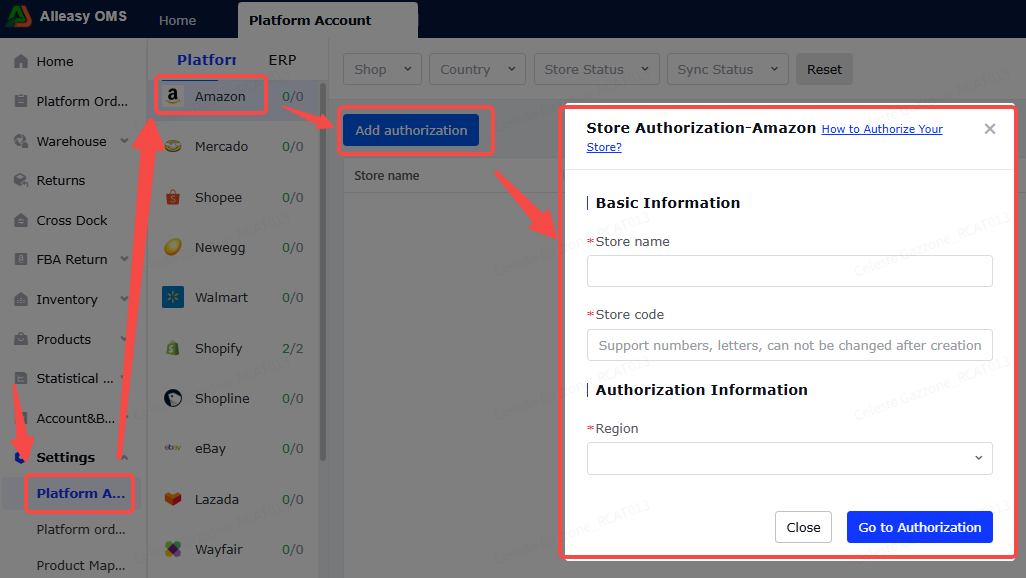
3.1 Login to OMS and Fill Authorization Info
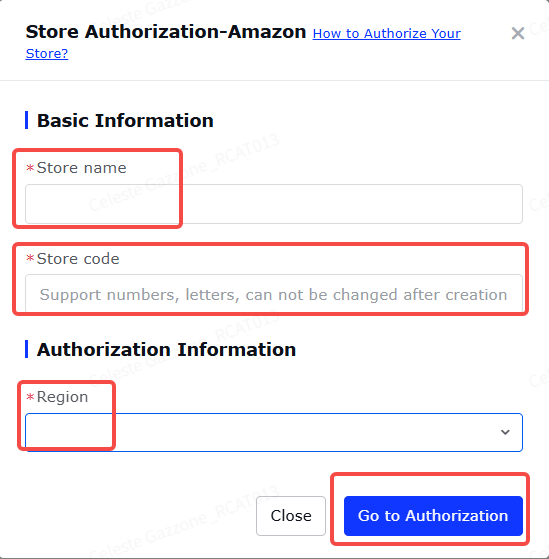
Fill in basic information (store name, store code are custom fields for OMS display). Select the corresponding store region in the authorization info area.
3.2 Click to Authorize and Login to Store Account
Click the authorization link and login with your Amazon store account.
3.3 Check Agreement and Confirm
3.4 View Authorized Store Info in OMS
After successful authorization, due to Amazon's sync mechanism, the OMS platform authorization page will display all stores in the region. Sync is based on account + region dimension.
3.5 Set Up Product Mapping (Required)
- Ensure OMS has created corresponding product SKUs
- Ensure Amazon product info has SKU filled in
- Quantity = conversion coefficient (NOT inventory quantity)
- Product mapping is bound to store - multiple stores need separate mapping
For detailed tutorial: How to Use OMS for Product Mapping
3.6 Platform Order Operations
- First authorization pulls orders from 3-5 days before store creation
- Subsequent syncs every 15 minutes (last 2 days)
- Click [Manual Sync] for immediate sync
For detailed steps: How to Use OMS Platform Orders for Shipping
4. Additional Information
4.1 Terminology
- Store Name: Custom name for identification, recommend using actual store name
- Store Code: Custom code for store identification
4.2 Important Notes
- Sync Order Status: Amazon only pulls "Unshipped" status orders
- Multiple Systems: Due to Amazon rate limiting, same store cannot sync to multiple OMS accounts
- Label Type: Amazon currently only supports warehouse labels
5. Common Issues
A: Amazon has rate limits for SP-API. Solution: Wait and retry later.
A: Check store status in OMS Platform Authorization. Store must be "Normally Syncing" and enabled. Disabled stores won't appear in product mapping store list.